Hey everyone! Welcome back to the blog.
If you’ve ever jumped into a ranked game feeling like your aim is completely off, your screen looks messy and cluttered, your crosshair disappears in the middle of a fight, or your movements just don’t feel smooth and responsive — you’re not alone. Thousands of Indian players face these exact frustrations every single day.
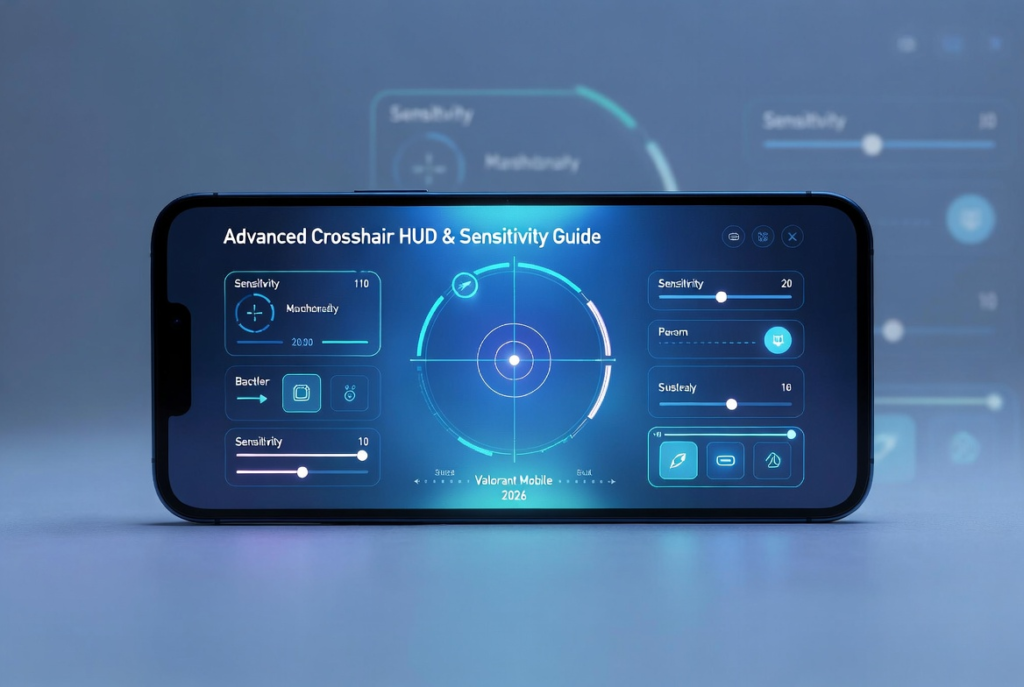
The truth is, Crosshair, HUD layout, and Sensitivity settings are the absolute foundation of consistent gameplay in Valorant Mobile. They are more important than most people realize. Even if you have godlike raw aim, a bad setup can make you feel like you’re playing with broken controls. On the flip side, a perfectly optimized setup can turn an average player into an absolute monster who climbs ranks effortlessly.
That’s exactly why I created this super detailed, extra-long guide — one of the most complete resources you’ll find for Valorant Mobile in 2026.
Inside this guide, I’m breaking down everything you need to know:
- The best crosshair settings for every playstyle (Duelist, Controller, Sentinel, Initiator)
- Optimal HUD layouts that work perfectly on budget phones, mid-range devices, and flagships
- Complete sensitivity recommendations tailored for different phone types — from ₹12k Redmi and Poco devices to high-end iPhones and Samsung Galaxy phones
- Pro-level tweaks and hidden settings that high-rank Indian players (Immortal & Radiant) are actually using right now
- Step-by-step customization routines so you can dial in your perfect setup in under 20 minutes
- Common mistakes most Indian players make and how to fix them instantly
Whether you’re a complete beginner struggling with basic aim or an experienced player looking for that final edge to push into Radiant, this guide will help you.
So grab your phone, open Valorant Mobile, and let’s transform your setup from “meh” to “buttery smooth.” By the end of this article, your movement, aim, and overall comfort will feel noticeably better.
Let’s dive in.
Why Settings Matter More on Mobile
Unlike PC, where you have a large monitor, a precise mouse, and plenty of screen real estate, Valorant Mobile forces you to play on a small touchscreen with limited visibility and gyro assistance. Every little detail counts.
A poorly optimized setup doesn’t just feel bad — it actively holds you back. Here’s what usually happens when your settings are wrong:
- Finger fatigue after just 2–3 games because buttons are too small or poorly placed
- Cluttered vision — too many HUD elements blocking your view during fights
- Inconsistent aim — your crosshair feels “floaty” or overshoots targets
- Missed headshots even when you’re aiming correctly
- Slower reaction time because you’re constantly adjusting your grip or struggling to find abilities
- Frustration and tilt that makes you play worse over time
On the other hand, when your Crosshair + HUD + Sensitivity are perfectly dialed in, everything changes. Your movements feel natural, your aim becomes consistent, and you react faster. Good settings create muscle memory that works across different phones and ping conditions.
This is especially important for Indian players who often play on mid-range or budget devices with higher ping (China servers via VPN). The right configuration can easily help you climb 2–3 ranks in a single act just by feeling more comfortable in gunfights.
Mastering your settings is one of the fastest and easiest ways to improve in Valorant Mobile.
Part 1: Best Crosshair Settings for Valorant Mobile (2026)
Your crosshair is the most important visual element in the game. It should be visible at all times, but never distracting. In 2026, the meta favors clean and minimal crosshairs because the mobile screen is already busy with HUD elements.
Recommended Base Settings (Perfect Starting Point)
- Crosshair Color: Cyan or Bright Green (stand out on almost every map)
- Outline: On + White (helps visibility in dark areas and through smokes)
- Center Dot: Off for most players (only turn on if you’re a pure tap-shooter)
- Inner Lines: 1 / 2 / 2 / 2
- Outer Lines: 0 / 0 / 0 / 0 (keeps it clean and mobile-friendly)
- Thickness: 1
- Length: Short to Medium
- Opacity: 1.0 (fully visible)
- Movement Error: Off
- Firing Error: Off (removes clutter when shooting)
These base settings work amazingly well for 70% of players. Start here and then customize according to your playstyle.
Playstyle-Specific Crosshairs
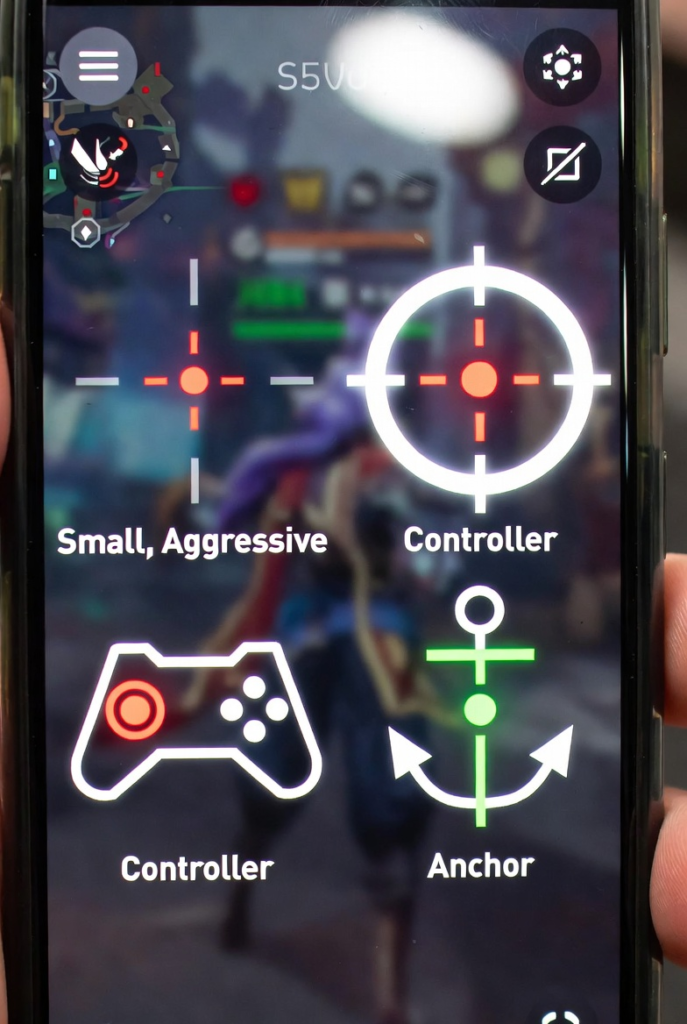
1. Aggressive Entry / Duelist Crosshair (Small & Precise) Perfect for players who entry first and flick a lot (Jett, Raze, Reyna, Phoenix, Yoru).
- Inner Lines: 1, 2, 2, 2
- Thickness: 1
- Length: Short
- Color: Cyan
- Outline: White
This small, tight crosshair gives you pixel-perfect precision for quick flicks and close-range fights. It’s the most popular choice among Immortal and Radiant Duelist mains in India right now.
2. Controller / Smoker Crosshair (Slightly Larger & Helpful) Best for Viper, Omen, Brimstone, Clove, and Harbor players.
- Inner Lines: 1, 3, 3, 3
- Center Dot: Small (Opacity 0.8)
- Length: Medium
- Color: Green or Cyan
The slightly bigger size helps you better judge distances when placing smokes and lineups. The small center dot acts as a useful reference point without being distracting.
3. Anchor / Sentinel Crosshair (Very Clean & Static) Ideal for Sage, Killjoy, Cypher, Deadlock, and Chamber players who hold angles.
- Inner Lines: 1, 1, 1, 1
- Outer Lines: 2, 0, 0, 0
- Thickness: 1
- Color: Cyan with White Outline
This super clean crosshair reduces visual noise so you can focus on enemy movement and angles for long periods.
4. Beginner-Friendly Crosshair Great if you’re new to Valorant Mobile or still building confidence.
- Classic static crosshair (default style)
- Small center dot
- Cyan color + White outline
- Inner Lines: 1, 2, 2, 2
Pro Tip: Once you reach Platinum or higher, switch to a more minimal crosshair. Most Radiant players in 2026 use very small, clean crosshairs with almost no outer lines.
Part 2: Best HUD Layouts for Different Devices
Your HUD (Heads-Up Display) is the control center of your entire game. If buttons are too small, too close, or badly placed, you’ll constantly miss abilities, struggle with movement, or get finger cramps. A good HUD layout should feel natural, reduce finger fatigue, and give you maximum screen visibility for aiming.
In 2026, the most successful Indian players customize their HUD heavily based on their phone’s size, refresh rate, and personal playstyle. Here’s the ultimate breakdown:
For Budget Phones (₹10k – ₹20k) – Redmi, Realme, Poco M Series, Moto G Series
These devices usually have smaller screens and lower refresh rates, so you need a bigger, more forgiving layout.
Recommended Settings:
- HUD Scale: 110% – 120% (makes everything easier to reach)
- Mini-map: Top-left corner, small size (reduces obstruction)
- Ability Buttons: Larger size, clustered in the bottom-right area
- Movement Joystick: Big and highly transparent (70–80% opacity)
- Fire Button: Large, placed on the right side for easy thumb access
- Jump / Crouch: Bottom-left area, easy for left index finger
Best Layout Style: 3-finger hybrid or basic 2-thumb + index This setup prevents accidental touches on low-end devices and helps compensate for slower touch response.
Pro Tip for Budget Users: Enable “Game Turbo / Game Space” on your phone and lock maximum performance + touch sampling rate.
For Mid-Range Phones (₹20k – ₹35k) – Poco X/F Series, Realme GT, iQOO Z Series, Samsung A/M Series
These phones offer a great balance of screen size and performance.
Recommended Settings:
- HUD Scale: 100% – 115%
- Mini-map: Top-left or top-right (whichever feels less intrusive)
- Ability Icons: Medium size for better visibility
- Movement Joystick: Medium size with 60–70% transparency
- Fire Button: Right side, slightly lower for comfortable thumb position
Best Layout Style: 4-finger claw or 3-finger hybrid This is currently the most popular setup among Gold to Immortal players in India.
You can comfortably reach:
- Left thumb → Movement
- Right thumb → Aim + Fire
- Left index → Jump / Crouch / Ultimate
- Right index → Abilities (C, Q, E)
For Flagship Phones (iPhone 15/16, Samsung S24/S25, Poco F6/F7, OnePlus, Vivo X Series)
High refresh rate screens (120Hz) and powerful processors allow for the most aggressive and minimal setups.
Recommended Settings:
- HUD Scale: 95% – 105% (maximum screen visibility)
- Mini-map: Very small, top corner
- All Buttons: Smaller and more spread out
- Fire Button: Smaller but highly responsive
Best Layout Style: Full 4-finger claw This gives you complete control and the highest potential ceiling for mechanical skill.
Flagship Advantage: You can use very small HUD elements without losing accuracy, giving you a massive view of the map.
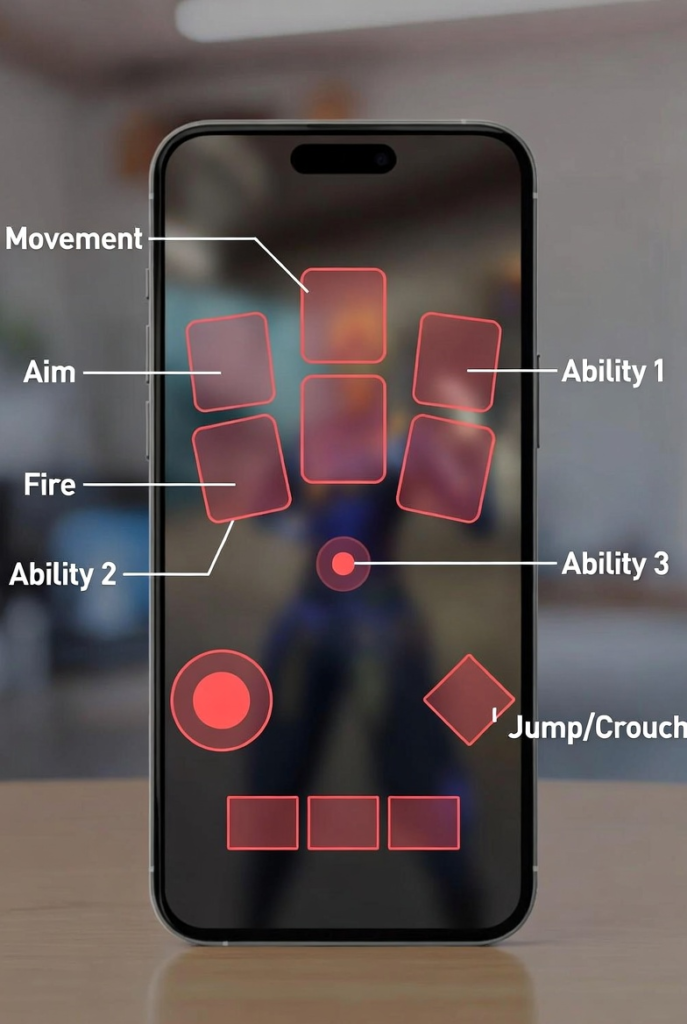
Recommended 4-Finger Claw Layout (Most Popular in 2026)
This is the layout used by most high-rank Indian players right now. It might feel uncomfortable for the first 2–3 days, but once you get used to it, you’ll never go back.
Button Positions:
- Left Thumb: Movement Joystick (bottom-left)
- Right Thumb: Aim + Fire Button (right side of screen)
- Left Index Finger: Jump + Crouch (top-left area or dedicated buttons)
- Right Index Finger: Abilities (C, Q, E) + Reload + Spike Plant/Defuse
Why this layout dominates:
Excellent for agents that require quick ability usage (Raze, Jett, Viper, etc.)
Allows simultaneous movement + aiming + jumping + using abilities
Reduces finger fatigue in long ranked sessions
Gives faster reaction time in fights
Part 3: Sensitivity Settings – The Complete Guide
Sensitivity is the heart of your aim in Valorant Mobile. Get it wrong and everything feels off — your flicks overshoot, your tracking feels laggy, and you miss easy headshots. Get it right and your aim becomes smooth, consistent, and deadly.
General Rule for 2026: Always start low and slowly increase until it feels comfortable. Most Indian players make the mistake of jumping straight to high sensitivity because they see pros using it. On mobile, starting too high is one of the fastest ways to stay stuck in lower ranks.
Recommended Sensitivity Settings (2026 Meta)
1. Budget / Low Refresh Rate Phones (60Hz) Redmi 10/12 series, Poco M series, Realme Narzo, older Samsung A series, etc.
- Camera Sensitivity: 35 – 45
- Gyro Sensitivity: 38 – 48
- Firing Sensitivity: 42 – 52
- Scope Sensitivity: 30 – 40
These lower values help compensate for slower touch sampling and lower refresh rates. You get better control and less shaking.
2. Mid-Range Phones (90–120Hz) Poco X6 / F6, Realme GT series, iQOO Z9, Samsung A35/A55, Nothing Phone, etc.
- Camera Sensitivity: 45 – 55
- Gyro Sensitivity: 50 – 65
- Firing Sensitivity: 55 – 70
- Scope Sensitivity: 40 – 50
This is the sweet spot for most Indian players right now.
3. Flagship / High Refresh Rate Phones (120Hz+) iPhone 15/16 series, Samsung S24/S25, Poco F7, OnePlus 12/13, Vivo X series, etc.
- Camera Sensitivity: 52 – 65
- Gyro Sensitivity: 65 – 85
- Firing Sensitivity: 70 – 90
- Scope Sensitivity: 45 – 60
Higher refresh rates allow you to push sensitivity safely while maintaining precision.
Pro Tip: Always enable Advanced Gyro in settings. Set “Firing Gyro” 5–10 points higher than normal gyro. This gives you better recoil control when spraying without making your general movement too shaky.
Sensitivity by Playstyle
Aggressive Players (Duelists – Jett, Raze, Reyna, Phoenix)
- Higher Gyro Sensitivity (70–90)
- Faster Camera Sensitivity You need quick flicks and fast 180° turns. Higher sens helps you win wide swings and entry fights.
Defensive / Anchor Players (Sage, Killjoy, Cypher, Deadlock)
- Lower Gyro Sensitivity (45–60)
- More precise Camera & Firing Sensitivity You hold angles for long periods. Lower sens gives you better micro-adjustments and crosshair placement.
Controller / Smoker Players (Viper, Omen, Brimstone, Clove)
- Balanced medium settings (Camera 48–58, Gyro 55–70) You need good movement + precise ability placement. Balanced sens works best.
Initiators & Flex Players Start in the mid-range category and adjust based on how much you entry vs hold.
Device-Specific Recommendations for Indian Players
Redmi / Poco Phones
- Lower all sensitivities by 5–10 points from the recommended range
- Turn on Game Turbo / Performance Mode + highest touch sampling rate
- Disable battery optimization for Valorant Mobile
Realme / iQOO Phones
- Excellent gyro sensors — you can comfortably use higher sensitivities
- Enable “GT Mode” or “eSports Mode” for maximum performance
iPhone Users
- You can push gyro the highest (75–95 range)
- Enable 120Hz ProMotion (if available)
- Use “Vivid” or “True Tone” display for better visibility
Samsung Galaxy Users
- Great balance — use mid to high settings
- Enable “Game Booster” + “Touch Protection”
Advanced Settings & Hidden Tweaks
- ADS Sensitivity: Keep between 0.8x – 1.0x (never go above 1.0x)
- Scoped Sensitivity: Set separately for Operator and Marshal (usually 10–15 points lower than normal)
- Auto-Crouch: Turn Off — manual crouch gives better spray control
- Peekers Advantage: Slightly increase Firing Sensitivity if you play aggressive
- Brightness & Color Settings: Max brightness in-game + use Vivid / Dynamic display mode on your phone
- Motion Blur & Camera Shake: Both Off
Step-by-Step Setup Routine (Do This Today)
- Go to Settings → Controls → Customize
- Import a good base layout or build your 4-finger claw
- Set your crosshair first (using Part 1 recommendations)
- Start with medium sensitivity from the table above
- Play 10 Deathmatches while adjusting only one value at a time
- Record a few games and watch replays in slow motion
- Check if you’re over-flicking (reduce sens) or under-flicking (increase sens)
Common Mistakes Indian Players Make
- Using default sensitivity (way too high for mobile)
- Directly copying PC pro player settings
- Completely ignoring gyro (huge mistake in 2026)
- Too cluttered HUD that blocks vision
- Not adjusting sensitivity per agent or map
- Changing settings too frequently instead of sticking to one for 1–2 weeks
Final Checklist for Perfect Setup
- Crosshair is visible but not distracting
- HUD is clean with comfortable thumb reach
- Sensitivity feels responsive yet fully controllable
- Gyro is enabled and properly tuned
- No finger fatigue even after 4–5 ranked games
- You can comfortably do 180° turns and precise tracking
Master these settings and you will immediately feel more confident in every gunfight. Your aim will become more consistent, and your rank will thank you.
Which playstyle do you main — Duelist, Controller, Sentinel, or Initiator? Tell me your phone model and current rank in the comments below and I’ll give you personalized sensitivity settings tailored exactly for you.
Share this guide with your friends who keep complaining that their aim feels bad on mobile!
Drop a like if this helped you, and let’s push to Radiant together! 🔥