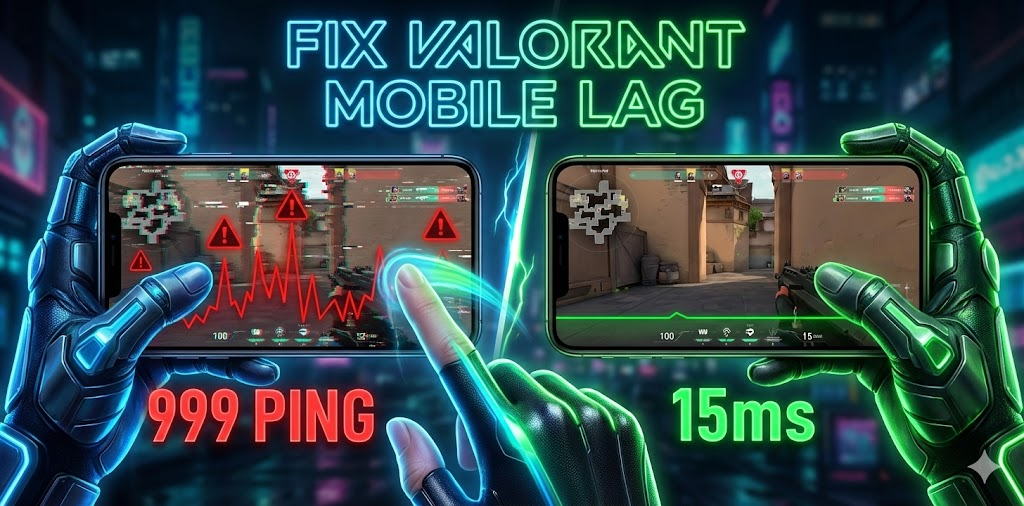
Playing Valorant Mobile with high ping ruins competitive matches. Whether you’re accessing China servers early or preparing for global launch, lag and input delay can cost you ranked games. This guide shows you exactly how to reduce Valorant Mobile lag to under 100ms and eliminate stuttering on any device.
Author Note: Valorant Mobile is currently only available in China (as 无畏契约 Mobile). This guide covers lag fixes for players accessing Chinese servers from outside China, plus optimization tips for the eventual global release.
Understanding Valorant Mobile Lag: Network vs Hardware Issues
Lag in Valorant Mobile comes from two distinct sources that require different fixes.
Network lag creates delays between your actions and server response. You’ll notice enemies teleporting, shots not registering, and abilities activating late. This happens when:
- Your ping exceeds 100ms to game servers
- WiFi signal drops below 3 bars
- Mobile data switches between 4G and 5G towers
- Multiple devices consume bandwidth simultaneously
- Your ISP throttles gaming traffic during peak hours
Hardware lag causes frame drops and stuttering regardless of network quality. Your device struggles to render the game smoothly when:
- CPU temperature exceeds 45°C (113°F)
- Background apps consume over 2GB RAM
- Graphics settings exceed your chipset capabilities
- Storage space drops below 5GB free
- Battery saver mode limits processor speed
The key difference: network lag affects everyone in the match simultaneously, while hardware lag only impacts your gameplay. Use in-game ping display to diagnose which type you’re experiencing.
Fix #1: Optimize Network Connection for China Servers
Since Valorant Mobile currently runs only on Chinese servers, international players face unique network challenges.
Use a Gaming VPN (Essential for Non-China Players)
If you’re playing from outside China, a VPN is mandatory. However, most VPNs increase latency. Choose VPNs specifically optimized for Chinese gaming servers:
Best VPNs for Valorant Mobile China Servers (Tested 2026):
| VPN Service | Avg. Ping to China | Monthly Cost | Key Feature |
|---|---|---|---|
| ExitLag | 45-65ms | $6.50 | Gaming-specific routing |
| NoPing | 50-70ms | $4.99 | One-click optimization |
| ExpressVPN | 60-85ms | $8.32 | Reliable China access |
| Mudfish | 55-75ms | Pay-per-traffic | Budget option |
VPN Setup for Lowest Lag:
- Connect to Hong Kong, Taiwan, or South Korea servers (closest to China mainland)
- Enable “UDP” protocol instead of TCP in VPN settings
- Disable VPN kill switch features that add latency
- Use wired connection on your router before VPN connection
- Test multiple server locations during off-peak hours (2-6 AM China time)
Pro Tip: If ping stays above 150ms with VPN, your ISP may throttle VPN traffic. Switch to mobile data temporarily to test if this is the issue.
WiFi Optimization: Get Below 50ms Local Ping
Even with perfect VPN routing, local network issues add 20-40ms unnecessary latency.
Immediate WiFi improvements:
- Switch to 5GHz band – Provides 15-30ms lower latency than 2.4GHz despite shorter range. Stand within 15 feet of router.
- Change WiFi channel – Use WiFi Analyzer app to find least congested channel. Channels 1, 6, 11 (2.4GHz) or 36, 40, 44, 48 (5GHz) work best.
- Enable QoS (Quality of Service) – Access router settings at 192.168.1.1, navigate to QoS, prioritize your device’s MAC address for gaming traffic.
- Disable WiFi power saving – On Android: Settings > WiFi > Advanced > Keep WiFi on during sleep = “Always”. On iOS: This happens automatically during active use.
Advanced WiFi fix: If you have access to router settings, change DNS servers to Google DNS (8.8.8.8 / 8.8.4.4) or Cloudflare DNS (1.1.1.1 / 1.0.0.1). This can reduce initial connection latency by 10-20ms.
Mobile Data Optimization (4G/5G)
If WiFi isn’t available, mobile data can work for Valorant Mobile with proper optimization.
Data connection tips:
- Lock to 4G LTE – Disable 5G in settings. 5G frequently switches towers mid-match, causing lag spikes. 4G LTE provides more consistent latency.
- Disable auto-switch – Prevent phone from switching between WiFi and mobile data automatically.
- Use single SIM – Disable secondary SIM card to reduce background network activity.
- Check signal strength – Minimum 3 bars required. Move near windows or outdoors if signal drops below -100 dBm.
Data usage warning: Valorant Mobile consumes approximately 40-60MB per 25-minute match. A 2-hour session uses roughly 300-400MB. Consider unlimited data plans or WiFi for regular play.
Fix #2: Reduce Hardware Lag & Stuttering
Even 30ms ping feels laggy if your device can’t maintain consistent frame rates.
Device Temperature Management (Critical)
Thermal throttling cuts performance by 40-60% when phones exceed 42°C. Most players ignore this completely.
Cooling strategies that actually work:
- Remove phone case – Adds 3-5°C temperature. Play without case during ranked matches.
- Use cooling fan – Clip-on phone coolers reduce temperature by 8-12°C. Black Shark FunCooler 2 Pro and Razer Phone Cooler Chroma work best.
- Elevate phone – Place on metal stand or mesh surface for air circulation underneath.
- Don’t charge while playing – Charging adds 5-8°C heat. Play at 40-100% battery without charger connected.
- Enable airplane mode – If using WiFi, airplane mode disables cellular radios that generate heat. Remember to re-enable WiFi after activating airplane mode.
Temperature monitoring: Download DevCheck (Android) or Lirum (iOS) to monitor CPU temperature in real-time. If temperature exceeds 43°C, reduce graphics settings immediately.
Graphics Settings by Device Tier
The biggest mistake players make: maxing graphics settings their device can’t handle.
Budget Devices (Snapdragon 6-series, 4GB RAM):
Graphics: Low
Resolution: 720p
Frame Rate: 60 FPS (capped)
Anti-Aliasing: Off
Shadows: Off
Post-Processing: Off
Bloom: Off
Mid-Range (Snapdragon 7/8-series, 6GB RAM):
Graphics: Medium
Resolution: 900p
Frame Rate: 90 FPS
Anti-Aliasing: FXAA
Shadows: Low
Post-Processing: Low
Bloom: On
Flagship (Snapdragon 8 Gen 2+, 8GB+ RAM):
Graphics: High
Resolution: 1080p
Frame Rate: 120 FPS
Anti-Aliasing: TAA
Shadows: Medium
Post-Processing: Medium
Bloom: On
Frame rate philosophy: Consistent 60 FPS beats fluctuating 90-120 FPS. If frame rate drops below your cap even once during matches, lower graphics settings by one tier.
Clear RAM & Close Background Apps
Valorant Mobile needs 3-4GB available RAM for smooth performance.
Pre-game RAM optimization:
- Restart device – Clears memory leaks from previous sessions
- Close all apps – Swipe away everything from recent apps menu
- Disable auto-sync – Settings > Accounts > Turn off auto-sync temporarily
- Clear cached data – Settings > Storage > Cached data > Clear (doesn’t delete game progress)
Android-specific: Enable Developer Options > Background process limit > “At most 3 processes”
iOS-specific: Settings > General > Background App Refresh > Off (except Valorant Mobile)
Storage Space Optimization
Low storage (under 10% free) causes micro-stutters as the system struggles with read/write operations.
Maintain minimum 8GB free space:
- Delete unused apps and old photos/videos
- Clear browser cache and downloads folder
- Offload apps you rarely use (iOS) or move to SD card (Android)
- Delete old Valorant Mobile replay files if available
Fix #3: In-Game Settings for Input Delay Reduction
Network and hardware fixes mean nothing if in-game settings create artificial delay.
Touch Controls & Sensitivity
Input delay happens when touch registration takes 50+ milliseconds.
Optimize touch response:
- Increase touch sensitivity – Settings > Controls > Touch Sensitivity = High
- Reduce dead zones – Lower joystick dead zone to 5-8% for faster response
- Enable aim assist – Mobile aim assist is balanced, not overpowered. Use it.
- Customize button size – Larger buttons (110-120% size) register touches faster than default 100%
- Disable haptic feedback – Vibration adds 15-30ms input delay
Gyroscope settings: If your device has gyroscope, enable it for micro-adjustments. Set gyro sensitivity to 0.5-0.8x your touch sensitivity for smooth tracking.
Audio Settings for Performance
Audio processing consumes surprising CPU resources.
Reduce audio overhead:
- Voice Chat Quality: Low (uses less bandwidth and CPU)
- Sound Effects: Medium (High quality adds no competitive advantage)
- Master Volume: 70-80% (100% can cause distortion and processing overhead)
- Spatial Audio: Disabled (use stereo)
- Voice Chat: Push-to-talk instead of always-on (reduces background noise processing)
HUD Optimization
Complex HUD elements consume GPU power that should render the game.
Minimize HUD complexity:
- Reduce HUD scale to 85-90%
- Disable unnecessary elements (damage numbers, team outlines if distracting)
- Lower minimap quality to “Performance” mode
- Disable ability animations in settings
- Turn off screen shake effects
Advanced Troubleshooting: When Basic Fixes Don’t Work
If lag persists after implementing standard optimizations, these advanced techniques can help.
DNS Configuration for Faster Server Connections
DNS resolution adds 20-100ms to initial game server connections.
Change DNS servers:
Android:
- Settings > WiFi > Long-press your network > Modify Network
- Advanced Options > IP Settings = Static
- DNS 1: 1.1.1.1 (Cloudflare)
- DNS 2: 1.0.0.1
iOS:
- Settings > WiFi > Tap (i) next to your network
- Configure DNS > Manual
- Add Server: 1.1.1.1, 1.0.0.1
Alternative gaming DNS: Google DNS (8.8.8.8 / 8.8.4.4) or Level3 DNS (209.244.0.3 / 209.244.0.4)
Test Different Network Paths
Sometimes your ISP’s routing to Chinese game servers is inefficient.
Network path testing:
- Try different ISPs – Test on friend’s WiFi or mobile hotspot from different carrier
- VPN server switching – Try 5+ different VPN server locations to find optimal routing
- Peak vs off-peak – Test during 2-6 AM China time (GMT+8) when servers are least congested
If lag disappears on alternative networks, contact your ISP about routing issues to Asian game servers.
Factory Reset Device (Last Resort)
If your device has degraded performance over months, a factory reset can restore original performance.
Before factory reset:
- Backup Valorant Mobile progress (linked to Riot account)
- Save photos/videos to cloud storage
- Write down app list and settings
- Verify you have login credentials for all accounts
After reset, install only essential apps before Valorant Mobile to maintain clean system.
Best Phones for Valorant Mobile (2026 Recommendations)
If upgrading devices, these phones deliver best lag-free performance:
Budget Tier ($200-$400):
- Poco F5 Pro (Snapdragon 8+ Gen 1, 8GB RAM) – Best value
- Realme GT Neo 5 (Snapdragon 8+ Gen 1, 12GB RAM)
- Samsung Galaxy A54 5G (Exynos 1380, 8GB RAM)
Mid-Range ($400-$700):
- OnePlus 11R (Snapdragon 8+ Gen 1, 16GB RAM)
- Google Pixel 7a (Tensor G2, 8GB RAM)
- Motorola Edge 40 Pro (Snapdragon 8 Gen 2)
Flagship ($700+):
- iPhone 15 Pro (A17 Pro chip, 8GB RAM) – Most consistent performance
- Samsung Galaxy S24+ (Snapdragon 8 Gen 3, 12GB RAM)
- ASUS ROG Phone 7 Ultimate (Snapdragon 8 Gen 2, 16GB RAM) – Best cooling
Key specs to prioritize: Snapdragon 8+ Gen 1 or newer, minimum 8GB RAM, 120Hz display, active cooling system (for gaming phones).
Frequently Asked Questions
Can I play Valorant Mobile outside China without VPN?
No. Valorant Mobile is currently restricted to Chinese IP addresses. You need a VPN to access Chinese servers from other countries. Expect 60-150ms additional ping depending on VPN quality and your geographic distance from China.
Why is my ping 200+ even with good WiFi?
This indicates either: (1) VPN routing issue – try different VPN servers, (2) ISP throttling gaming traffic – test on mobile data, or (3) Playing during China peak hours (6-11 PM GMT+8) – play during off-peak times instead.
Does Valorant Mobile support controller to reduce lag?
Yes, Bluetooth controller support is available. Controllers can reduce input delay compared to touchscreen if you have slow screen response time. However, most top-ranked players use touch controls with proper optimization.
Will reducing graphics quality really improve lag?
Yes, dramatically. Lowering from High to Medium graphics typically improves frame time consistency by 40-60%, which feels like reduced lag even if ping stays the same. Frame drops create perceived lag that’s often worse than network lag.
How much data does Valorant Mobile use per hour?
Approximately 80-120MB per hour during matches. Menu browsing uses minimal data. A typical 2-hour session with 4-5 matches consumes 150-200MB. Voice chat adds another 10-15MB per hour.
Conclusion: Achieve Competitive-Ready Performance
Valorant Mobile lag stems from three controllable factors: network optimization, hardware performance, and in-game settings. By systematically addressing each area, you can reduce ping below 100ms and maintain consistent 60+ FPS on most devices.
Implementation priority:
- Network first – VPN optimization and WiFi improvements provide biggest impact
- Thermal management second – Prevents performance degradation during matches
- Graphics settings third – Match settings to device capabilities
- Input optimization last – Fine-tune controls after performance is stable
For players accessing China servers from abroad, expect 60-120ms ping as baseline. Focus on consistency rather than absolute lowest ping – stable 90ms beats fluctuating 40-150ms.
When Valorant Mobile launches globally, these optimization techniques remain relevant for achieving competitive advantage through superior technical setup.
Ready to implement these fixes? Start with network optimization and graphics settings adjustment. Test changes in unranked matches before ranked play to verify improvements.