Before you learn about Topic, make sure your phone is ready using our Valorant Mobile Compatibility Checker.
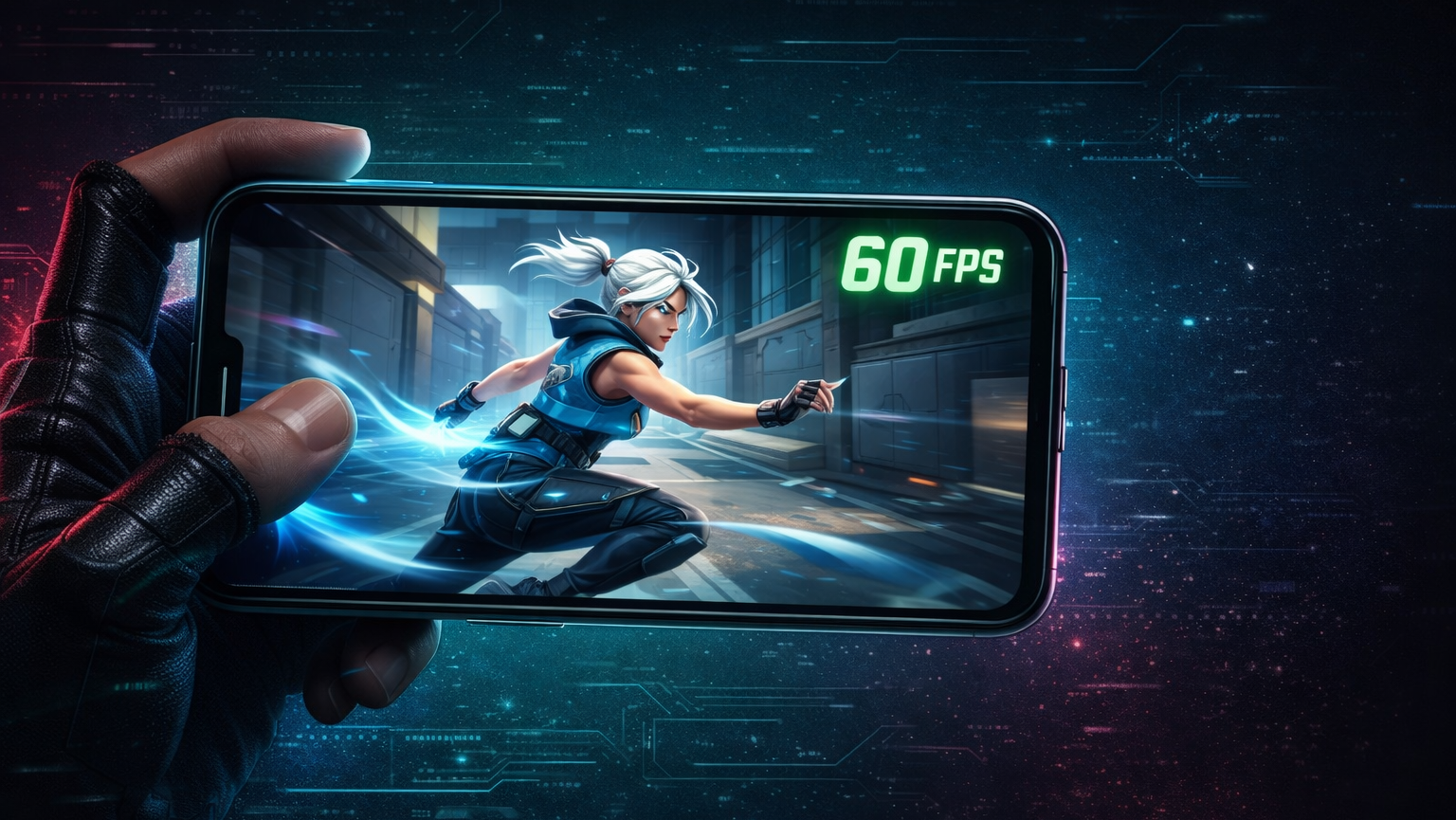
Achieving consistent 60+ FPS in Valorant Mobile requires a device equipped with at least a Snapdragon 8 Gen 1 (Android) or A13 Bionic (iOS) processor, combined with specific graphical adjustments such as lowering Material Quality, disabling Dynamic Shadows, and enabling High Performance Mode in your system settings. For competitive play, frame rate stability is prioritized over visual fidelity to minimize input lag and maximize reaction times.
This guide provides a technical breakdown of the hardware requirements, device recommendations, and configuration steps necessary to optimize your mobile rig for the tactical precision Riot Games demands.
Introduction: The Critical Role of Frame Rates in Tactical Mobile Shooters
In tactical shooters like Valorant, frames per second (FPS) dictate the smoothness of motion and the responsiveness of aim.
Why 60+ FPS is Essential for Aim and Reaction Time
Competitive integrity relies on low frame times (the time it takes to render a single frame).
- 30 FPS: Frame time is approx. 33.3ms. This creates noticeable input lag and “choppy” tracking.
- 60 FPS: Frame time drops to 16.6ms. This is the standard for fluid tracking and recoil control.
- 120 FPS: Frame time is 8.3ms. This provides a significant advantage in “peeker’s advantage” scenarios and micro-adjustments.
Overview of Valorant Mobile Optimization Goals
The goal is not just hitting a peak number, but maintaining 1% Lows (minimum frame rates during intense action). Optimization involves:
- Reducing GPU load through texture/shadow reduction.
- Managing CPU thermals to prevent throttling.
- Minimizing network jitter.
Official Valorant Mobile System Requirements for Android and iOS
To understand optimization, one must understand the baseline. Based on beta tests and official announcements, the hardware floor is relatively accessible, but the competitive floor is much higher.
Valorant Mobile Minimum Requirements For Android And Ios
Minimum Specs vs. Competitive Recommended Specs
| Feature | Minimum Specs (Playable) | Competitive Recommended (60 FPS+) | Elite Specs (120 FPS) |
|---|---|---|---|
| Android SoC | Snapdragon 675 / Kirin 970 | Snapdragon 870 / Dimensity 1200 | Snapdragon 8 Gen 2 / Gen 3 |
| iOS SoC | Apple A11 Bionic (iPhone X) | Apple A13 Bionic (iPhone 11) | Apple A17 Pro / M1/M2 iPad |
| RAM | 4GB | 8GB | 12GB+ |
| Storage | 4GB Free Space | 10GB+ Free Space | 20GB+ (NVMe/UFS 3.1) |
| OS | Android 7 / iOS 11 | Android 11 / iOS 15 | Latest OS |
Understanding CPU Architectures: Snapdragon, Dimensity, and Apple Bionic
- Snapdragon (Qualcomm): The gold standard for Android gaming due to Adreno GPU drivers, which are highly optimized for Unreal Engine (the engine powering Valorant).
- Dimensity (MediaTek): Newer chips (9000 series) are powerful, but occasionally lack the driver maturity of Snapdragon, potentially causing minor asset loading stutters.
- Apple Bionic/M-Series: Unmatched single-core performance. The M-series on iPads offers desktop-class performance that virtually eliminates frame drops.
RAM and Storage Needs: Preventing Crashes and Asset Loading Stutters
Valorant Mobile relies on streaming assets. Slow storage (eMMC) causes stuttering when an enemy agent skin loads for the first time.
- Requirement: Devices with UFS 3.1 or UFS 4.0 storage are essential for instant asset loading.
- RAM: 8GB is the sweet spot to keep the game and Discord (for comms) open without the OS killing the background process.
Best Devices for Valorant Mobile 60 FPS and Beyond
To see how these devices handle the specific mechanics of the game compared to the PC version, read Valorant Mobile Vs Valorant Pc Whats Different Whats The Same.
High Performance Mobile Devices (Unlocked 120 FPS)
These devices can handle maximum settings and refresh rates.
Flagship Android Picks: ROG Phone 8, RedMagic 9 Pro, Galaxy S24 Ultra
- RedMagic 9 Pro: Features a built-in 22,000 RPM turbofan and shoulder triggers (mapped to abilities). It sustains 120 FPS without thermal throttling.
- ROG Phone 8: The best software suite (Armoury Crate) for granular CPU/GPU control.
- Samsung Galaxy S24 Ultra: Uses the “Snapdragon 8 Gen 3 for Galaxy” (overclocked). While powerful, it lacks active cooling, so it requires an external cooler for long sessions.
Top iOS Contenders: iPhone 15/16 Pro Max and iPad Pro M-Series
- iPad Pro (M2/M4): The ultimate competitive device. The 120Hz ProMotion screen combined with the 4:3 aspect ratio offers superior visibility.
- iPhone 15/16 Pro Max: The A17 Pro chip handles ray tracing and high-fidelity assets easily, though the device can get warm.
Best Budget Gaming Phones (Stable 60 FPS)
Mid-Range Warriors: POCO F6, Pixel A-Series, and OnePlus Nord
- POCO F6: Equipped with the Snapdragon 8s Gen 3. It offers near-flagship performance at a fraction of the cost.
- OnePlus Nord 3: Great cooling and fluid OxygenOS optimization.
- Pixel 7a/8a: Note: Tensor chips prioritize AI over raw gaming power. While they run 60 FPS, they are prone to heat. Not recommended for competitive grinding.
Value Options: Older Flagships (Snapdragon 8 Gen 1/2)
Buying a used Samsung S21 Ultra or OnePlus 9 Pro is often better than buying a new budget phone. You get premium screens and better GPU drivers.
Valorant Mobile Graphics Settings for Max FPS
Early reports from beta regions highlight specific settings that impact performance. Valorant Mobile China Beta Features
Step-by-Step Configuration for High Performance
Resolution and Texture Quality: Finding the Balance
- Resolution: Set to Medium or High. Do not use “Ultra” or “4K” on mobile screens; the pixel density is already high, and the GPU tax is massive.
- Texture Quality: Low. In competitive play, simple textures make enemy outlines pop against the background.
Material Quality and Detail Levels
- Material Quality: Low. This removes complex reflections on guns and puddles.
- Detail Quality: Medium. Setting this too low might remove essential ability lineups or visual cues on the map.
Visual Effects to Disable: Bloom, Distortion, and Dynamic Shadows
Toggle these OFF immediately:
- Bloom: Creates a glow around lights; distracting and lowers FPS.
- Distortion: Warps the screen near explosions; terrible for aiming.
- Dynamic Shadows: The most taxing setting. Calculating real-time shadows for 10 agents drastically increases GPU heat.
Valorant Mobile Settings for Low End Devices
If you are on a Snapdragon 600 series or older iPhone:
- FPS Setting: Cap at 60 (do not try 90/120).
- Graphics Quality: Smooth/Low.
- Anti-Aliasing: OFF.
- Bloom/Shadows: OFF.
Advanced Valorant Mobile Hardware Optimization Techniques
How to Unlock 120 FPS in Valorant Mobile
Valorant Mobile Gameplay Review First Impressions From Beta Testers
Display Settings: Enabling 120Hz/144Hz Refresh Rates
You must enable this at the system level first.
- Android: Settings > Display > Refresh Rate > High (or 120Hz/144Hz). Do not leave it on “Auto/Adaptive.”
- iOS: Settings > Accessibility > Motion > Ensure “Limit Frame Rate” is OFF.
Config File Edits and Frame Rate Caps
- Warning: Riot Games’ Vanguard anti-cheat is strict.* Unlike PUBG Mobile, editing
UserGameSettings.inior config files in Valorant Mobile may trigger a ban. Stick to in-game menus and phone system settings.
System-Level Tweaks for Android and iOS
Enabling ‘Game Mode’ and High-Performance Battery Profiles
- Samsung: Game Launcher > Game Booster > Priority Mode.
- Xiaomi/POCO: Game Turbo > Performance Mode > Increase Touch Response.
- Battery: Always enable “High Performance” in battery settings. Never play on “Battery Saver.”
Android Developer Options: Force 4x MSAA and Background Limits
- Enable Developer Options (Tap Build Number 7 times).
- Force 4x MSAA: Generally, keep this OFF for max FPS. It smooths edges but consumes GPU power.
- Background Process Limit: Set to “At most 2 processes” to prevent social media apps from stealing CPU cycles.
iOS Focus Modes and Guided Access for Uninterrupted Play
- Guided Access: Triple-click the side button to lock the device to the Valorant app. This prevents accidental swipes to the home screen and blocks all notifications.
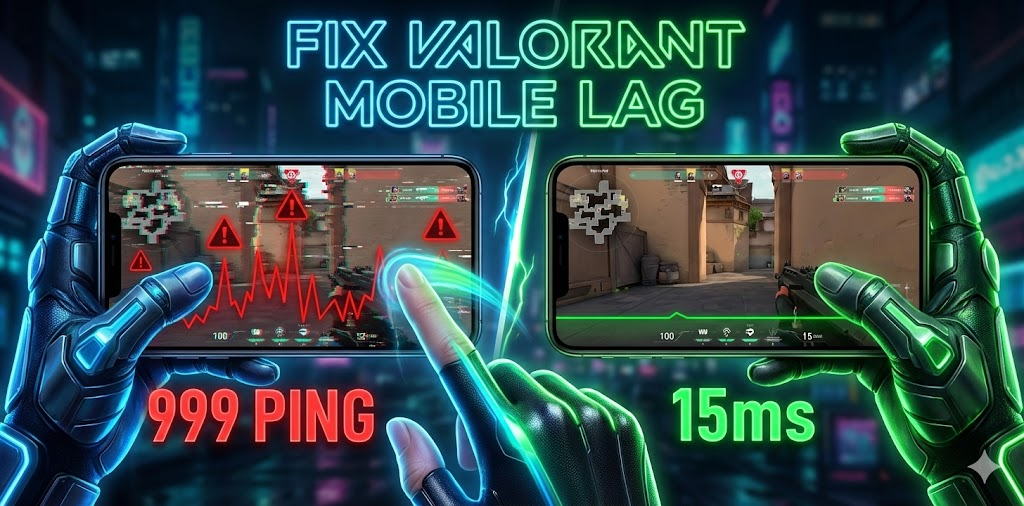
Valorant Mobile Lag Fix and Performance Boost Strategies
Thermal Management: Preventing Throttling with External Coolers
Mobile CPUs throttle performance when they hit roughly 40°C-45°C.
- Solution: Use a Peltier (semiconductor) cooler like the Razer Phone Cooler Chroma or Black Shark FunCooler. These actively refrigerate the back of the phone, maintaining peak clock speeds.
Network Optimization: Reducing Ping and Jitter on Wi-Fi vs. 5G
Valorant uses a “tick rate” system that demands a stable connection.
- 5G: High bandwidth, but susceptible to signal jitter.
- Wi-Fi 6/6E: The preferred connection. Use the 5GHz band specifically.
- DNS: Change your DNS to 1.1.1.1 (Cloudflare) or 8.8.8.8 (Google) to potentially route traffic faster.
Maintenance: Clearing Cache and Managing Storage for Smoother Gameplay
- Storage: Keep at least 15-20% of your total storage free. A full drive slows down read/write speeds, causing stutters.
- Cache: Clear the cache partition (Android recovery mode) after major OS updates to remove junk files.
Conclusion: Creating the Ultimate Competitive Setup on Mobile
Optimizing for Valorant Mobile is a triad of hardware selection, software configuration, and environmental management. By choosing a device with a modern processor (Snapdragon 8 Gen series or Apple A-series), prioritizing frame rate over graphical fidelity in settings, and managing thermals, you can achieve the 60+ or 120 FPS standard necessary for competitive play.
Remember, a stable 60 FPS is infinitely better than a fluctuating 120 FPS. Start with stability, aim for performance, and dominate the lobby.